Photography Post-Production

0 Views ·Posted
Watch this B&H video, and learn how fine art photographer Anya Anti retouches her surreal and dreamy photos using Adobe Photoshop. Anti shares tips about aspects of her photos such as her workflow, cleaning up her backgrounds, how to deal with facial complexion, and more.
0:00 - Introduction
0:25 - Tip 1
1:26 - Tip 2
3:20 - Tip 3
4:10 - Tip 4
4:48 - Tip 5
5:20 - Final Thoughts
Click here to watch how Anti plans and

0 Views ·Posted
If you dread culling thousands of images, or just want to save time in post-production, watch as AfterShoot co-founder Justin Benson demonstrates how AfterShoot will cut your workflow time in half. Using new AI technology, AfterShoot categorizes your images by blinks, blurs, and duplicate photos, while also suggesting the best images for you to begin editing.
0:00 - Introduction
2:50 - Justin's Career: Putting AfterShoot Together
5:48 - What is AfterShoot Looking At?
9:23 - The Beginning of AfterShoot
17:50 - AfterShoot In-App Support
20:48 -
0 Views ·Posted
In this last session of the series, we continue covering the tools you need to completely edit your portraits in Capture One, including adjusting skin tone, dodge and burn, and basic retouching. And thanks to the different masking options and layers available, we play with lights and shadows to make your portraiture stand out.
0:00 - Introduction
4:15 - Review and Editing First Steps
8:31 - Light and Contrast Adjustments
18:01 - Color Adjustments
21:30 - Skin Tone Adjustments
27:15 - Unifying Skin Tones
31:04 - Style Brushes
35:39 - Dodge and

0 Views ·Posted
Don’t miss this chance to build a powerful workflow from scratch in Part 3 of this series. In this session, we’ll cover everything you need to know so you can decide what suits you best. Learn the tools for cataloging and organizing your files in an efficient way, according to your own logic and preexisting system. Whether you already use Capture One to manage your photos, or you're curious about using this powerful software to handle your entire workflow, you won't want to miss this session.
0:00 - Introduction
5:16 - Sessions vs. Catalogs

0 Views ·Posted
Capture One is the industry standard for tethering but luckily, it is not at all complicated to use. In Part 2 of this webinar, we'll show you the steps to tether your camera, as well as all the tethering features Capture One has to offer.
0:00 - Introduction
2:15 - What are Sessions in Capture One?
3:50 - How to Create a New Session
7:46 - Session and Tethering Interface
18:15 - Using the Camera View in Capture One
21:46 - Adjusting the Image with the Brush Tool, Adjusting the Levels, and Adding Vignette
26:31 - Q&As
29:04 - Adjusting

0 Views ·Posted
Get up to speed on the new interface, functionality, and features for making selective edits to regions, features, subjects, colors, and tonal values in your photographs. The new Masking functionality is available in Lightroom Classic, Lightroom, and Camera Raw. This session focusses primarily on Masking in Lightroom Classic.
0:00 - Introduction
3:29 - Masking Tools in Lightroom Classic
6:58 - Linear Gradient Mask
10:03 - Interface Options for Masking
16:21 - Radial Gradient Mask
23:35 - Select Sky - AI Masking Tool
32:45 - Select Subject AI
0 Views ·Posted
Join us for a comprehensive walk through Capture One and learn how to get the best results from your RAW files. In this video session, we cover everything you need to know to get started with the standard professional RAW editing software. After the session, you’ll be able to start working with Capture One confidently and you’ll have the creative tools you need to get the most out of your photos.
0:00 - Introduction
2: 27 - Learning the

0 Views ·Posted
There are tools and techniques hidden inside Adobe Photoshop Lightroom Classic that every travel photographer should know. In this B&H video, photographer David Marx explains how to use the editing software to bring your photos to life. He discusses topics such as how to edit your exposure, how to use the gradient tool, and offers other helpful tips.
0:00 - Overview
3:23 - Repairing
18:14 - Global Edits
33:09 - Local Edits
39:15 - Map Module
48:13 - Organizational Tools
51:35 - Q&A
58:24 - Final Thoughts
Sponsored by

0 Views ·Posted
In this tutorial, learn how @Kyler Steele accomplishes his cinematic, vintage look through color grading in Lightroom, as well as how to apply these techniques to your own photos.
Care to share your own tips for color grading? Post in the Comments section, below.
0:00 - Introduction
0:18 - Profiles
0:40 - HSL
1:34 - Calibration
2:12 - Reference Tool
2:41 - Presets
3:46 - Final Thoughts
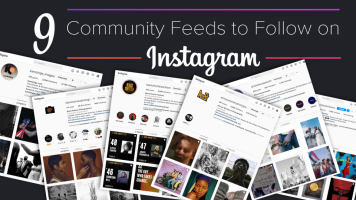
Community can be a powerful resource in promoting representation within creative fields. This is nowhere more evident than in the recent blossoming of communities dedicated to racial and gender equity. As part of our celebration of Black History Month, we looked to Instagram in assembling this list of community feeds dedicated to black photographers and visual content creators.
We started by contacting a few popular communities, expanding from there by adding feeds recommended by our initial contacts. We've organized the feeds alphabetically

0 Views ·Posted
Professional headshot photographer Rod Goodman shows you his step-by-step retouching process in Adobe Photoshop. Using techniques such as dodge and burn and frequency separation, you learn how to make skin retouching, blemish removal, and skin sculpting look natural.
What are your tips for photo retouching? Share them with us in the Comments section.

Apple has brought the SD card slot back to the MacBook Pro—that couldn’t be a clearer signal that these new M1-equipped models are meant for photographers. They are more powerful than previous models, have a gorgeous display, and seem like the upgrade for which everyone has been waiting. That also means a lot to photographers.
B&H Recommends…
14" MacBook Pro with M1 Pro
M1 Max 10-Core CPU
16-Core GPU

0 Views ·Posted
Learn how to automate your Adobe Lightroom Classic workflow in this in-depth masterclass! If you want to cut down on time spent editing photographs, Clifford Pickett shows you how to use Lightroom most efficiently!
If you have questions or comments, please post them just below.

Raw vs. JPEG. The debate has persisted since the early days of digital photography. With modern digital technology, in-camera JPEG processing has never been better. Across brands, some photographers claim to have switched their workflow to JPEG exclusively, forgoing the advantages (and disadvantages) of shooting raw files. Others shoot raw + JPEG simultaneously to enjoy the benefits of both. Of course, many shoot only raw images. With a week in Ireland to focus on photography, I decided to dive deeper into the raw vs. JPEG option and see if it

by Cory Rice ·Posted
Adobe has announced the latest iterations of Photoshop Elements and Premiere Elements, the streamlined versions of its immensely popular photo- and video-editing software. Fresh in the 2022 edition are a number of new, user-friendly editing functions powered by Adobe Sensei AI technology, as well as a handful of video-geared